Microsoft Teams Integration
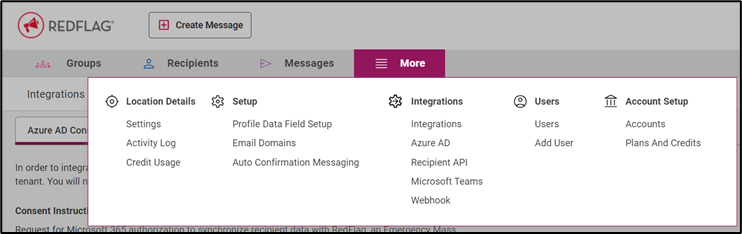
📍 To access the Microsoft Teams integration, go to: More > Integrations > Microsoft Teams
Overview
To integrate Microsoft Teams with RedFlag, RedFlag would just turn on Microsoft Teams for your account in the backend of RedFlag. Once Microsoft Teams has been enabled in RedFlag, a RedFlag user for your location (Account Admin, Super Admin, or IT Admin) will need to login to RedFlag to complete the setup and to send the consent email to your Microsoft 365 administrator to provide consent.
IMPORTANT: Consent must be given by your Microsoft 365 admin. Once consent has been granted, recipients with Teams ID that RedFlag links to will be sent a Welcome Message in Teams. There is not a way to currently get around this in Microsoft Teams.
Connect RedFlag to Microsoft Tenant
Once Microsoft Teams has been enabled, login to RedFlag and go to More > Integrations > Microsoft Teams to begin setup.
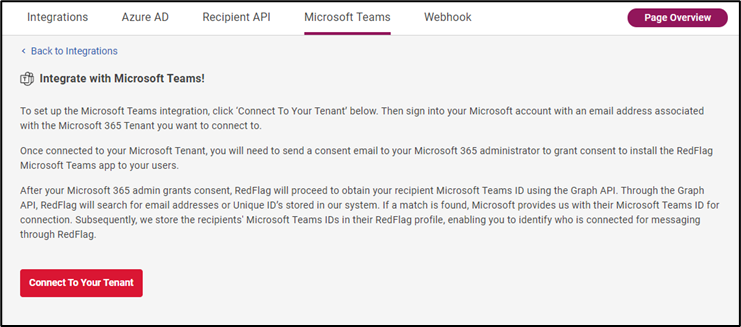
Click ‘Connect To Your Tenant’ to sign into your Office Account to connect to your Office 365 Tenant.
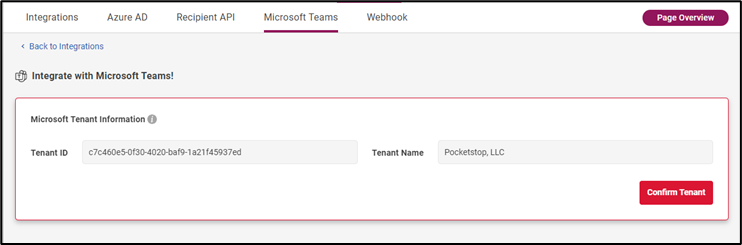
Once signed in, a Microsoft Teams integration page will display. This will display the Microsoft Tenant you signed into with your email address. You will need to confirm if this is the correct Tenant to connect to.
User Permissions to Send Teams Messages
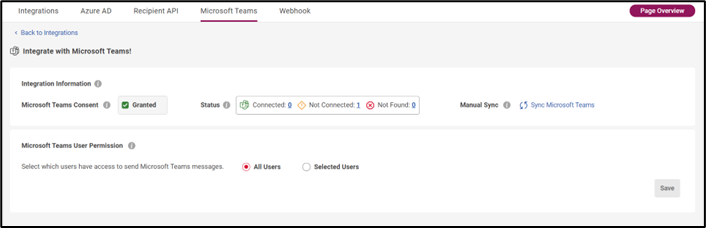
Next, select which users have access to send Microsoft Teams messages to recipients.

Microsoft Admin Consent for Microsoft Teams
You will then need to send the Microsoft Teams Consent Email to your Microsoft 365 administrator to grant consent to the permissions allowing RedFlag to install the RedFlag Microsoft Teams app to recipients within RedFlag.
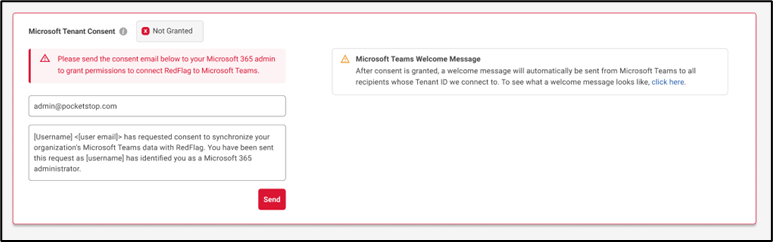
After the Microsoft 365 Admin provides consent through the email, the Microsoft Teams integration is complete unless the app permission is blocked within your Microsoft Teams app (see below).
App Permissions Required
To connect RedFlag with Microsoft Teams, the following permissions must be granted in Entra ID:
- Permission: User.Read
- Type: Delegated
- Reason: Enables sign-on and allows RedFlag to read users' profiles. This is required to pull the tenantId and associate it with the RedFlag location.
- Permission: User.Read.All
- Type: Application
- Reason: Allows RedFlag to read all users’ full profiles. This is required to match RedFlag recipients to their corresponding Entra ID users.
- Permission: TeamsAppInstallation.ReadWriteForUser.All
- Type: Application
- Reason: Allows RedFlag to manage Teams apps for all users. This is required to install and/or uninstall the RedFlag Teams app for Entra ID users.
Connect Recipients in RedFlag to Microsoft Teams
Once RedFlag is connected to your Office 365 Tenant, RedFlag then obtains your recipient Microsoft Teams ID using GraphAPI. RedFlag makes a call through the GraphAPI to search for email addresses we have on file in RedFlag. If there is a match, Office gives us their Microsoft Teams ID to connect to. We then store the recipients Microsoft Teams ID in their RedFlag profile (so you can see who is connected to message through RedFlag).
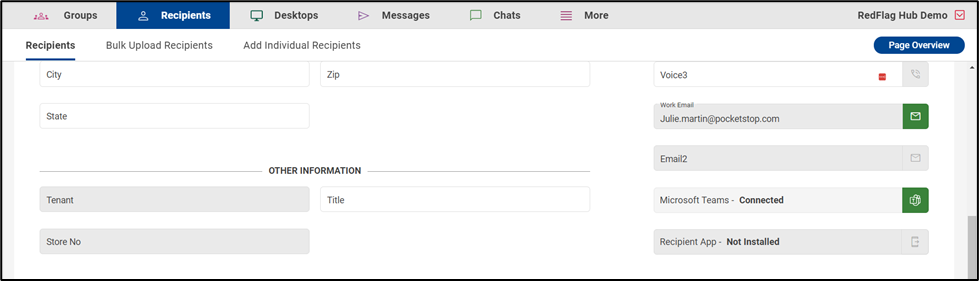
If there are recipients in RedFlag who we cannot find the Microsoft Teams ID for through the GraphAPI, the status will be ‘Not Found’.

If there are issues with the app connection and there are errors in recipient profiles for 'App is blocked by app permission policy':
- Open the Microsoft Teams Admin Center: https://admin.teams.microsoft.com.
- Go to Teams apps > Manage apps.
- Search for RedFlag.
- Verify the following:
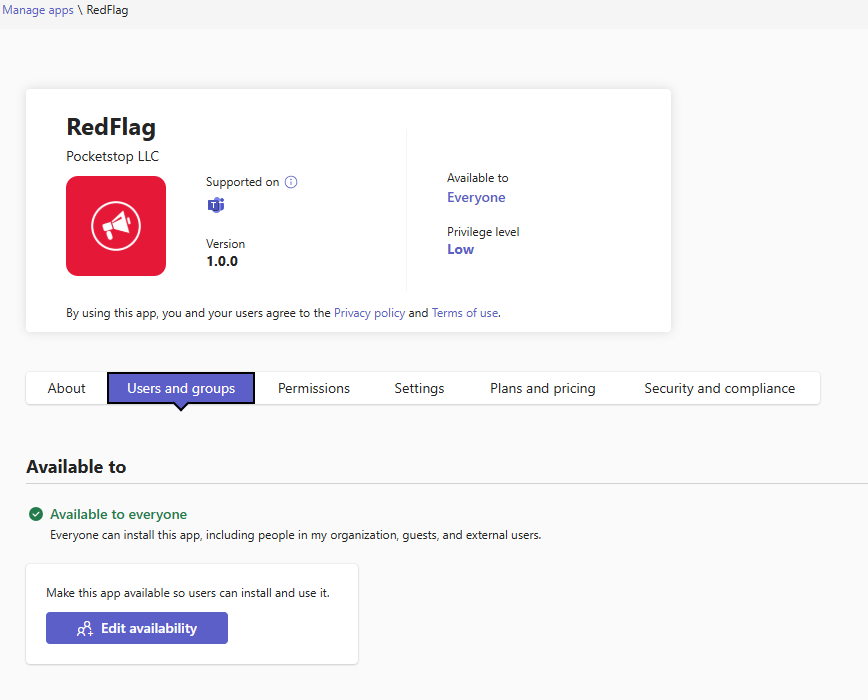
- App status is Unblocked
- App is Available to: Everyone
🛡️ Note: If the app is not unblocked or not available to everyone, users will not receive Teams messages.

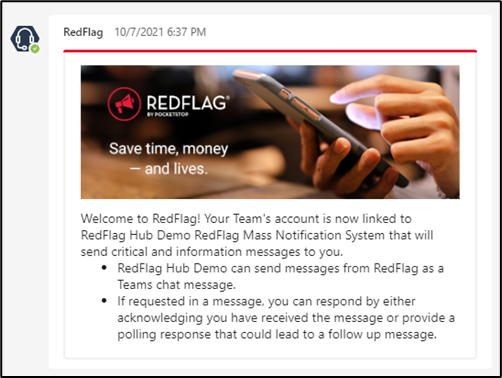
Microsoft Teams Welcome Message After Connection
Recipient Teams ID that RedFlag links to will be sent a Welcome Message in Teams. There is not a way to currently get around this in Microsoft Teams. Welcome Message below (it will have your company name instead of RedFlag Hub Demo):
Microsoft Teams Integration Status
After the Microsoft Teams Integration is complete, you can navigate back to More/Integrations/Microsoft Teams to view the Tenant Integration Information (with the ability to resend the consent email if needed), the Microsoft Teams Consent Status, the Recipient Connection Status, and the ability to Manually Sync Microsoft Teams.
You can also update the user permission of who is allowed to send Microsoft Teams messages to recipients.
Sending Messages Through the Microsoft Teams Channel
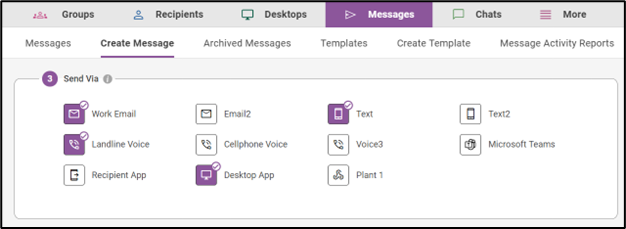
Once RedFlag is connected to Microsoft Teams, Microsoft Teams is just another channel to send your messages through under ‘Create Message’ or ‘Create Template’.
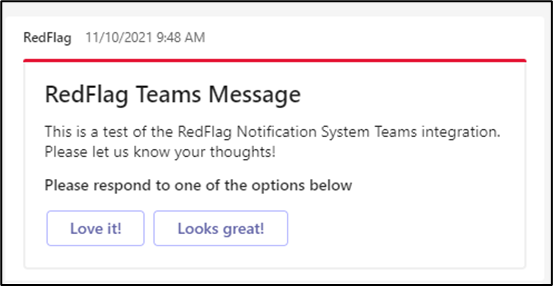
Example of Microsoft Teams message with polling included: