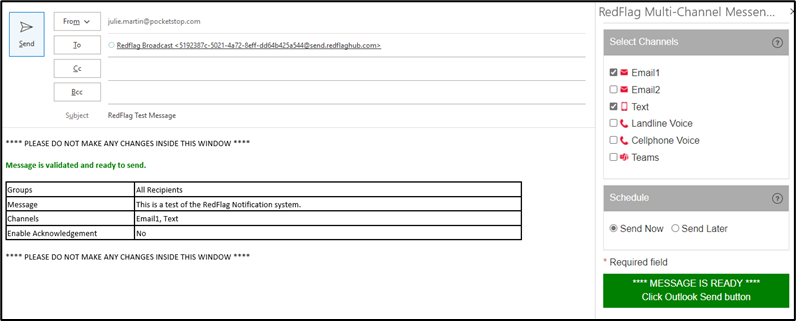
Microsoft Outlook Add-in
To send a message directly from Outlook, use the RedFlag Add-in (“Multi-Channel Messenger”).
Note: Not all functionality is available in the Outlook Add-in.
Your Microsoft admin can install add-ins from the Admin Center to all, or limited, Microsoft 365 users. To learn more on deploying add-ins in the Admin Center, click here: https://docs.microsoft.com/en-us/microsoft-365/admin/manage/manage-deployment-of-add-ins?view=o365-worldwide
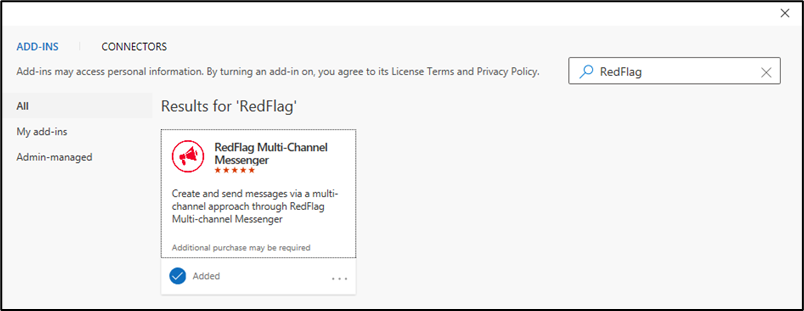
To enable the Outlook RedFlag Add-in, select “Home” on the menu bar, and then click on the “Get Add-ins” button in the “Add-ins” group., enter “RedFlag” in the search box, and select the RedFlag Add-in (“Multi-Channel Messenger”). Then click “Get It Now” and follow the on-screen prompts to install.

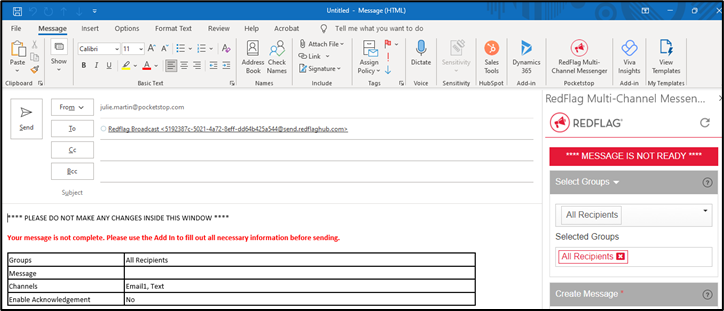
Once you have installed the Add-in, open a new email in Outlook and click on the “RedFlag Multi-Channel Messenger” on the “Message” tab. Then sign in with your normal login credentials.
Then select the Group(s) you want to send the message to.
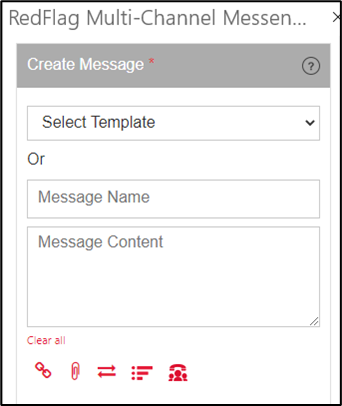
Then either select a pre-built template or compose your message.
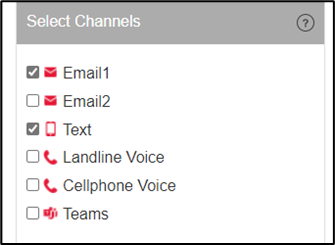
Then select the channels to send the message through.
The message information will appear on the left side in email pane. Once the message is validated you can Send Now or Schedule to send later. You can also hit the Outlook Send button to send.